Run an Addon
Each Addon has its own inputs, options and outputs. For a first example, follow Run your first Addon.
Choose the inputs
- Select an Addon on the home page or in the sidebar.
- Fill the inputs it asks for. A photo input offers Upload from computer and Choose from media library; you can also drop a photo onto the composer. Selecting an attachment opens a larger view; its remove button clears the selection.
- Choose the options below the composer. Required inputs must be filled before Generate becomes available; the hint beside it explains what is missing.
- Check the displayed credit price and select Generate. The page first uploads new files, then shows the run's steps. Photos from your library are reused without another upload.
For Product reveal video, provide a product photo or describe the product in Opening scene. You can supply both. Closing scene and the length control the rest of the video.
Follow a run
The run page shows its steps, available previews and final results. A preview is an intermediate result; it can appear before the whole run finishes. A failed run shows an explanation instead of final results.
You can leave the page and use another Addon. Open Jobs in the top bar to return to a run that is still working:
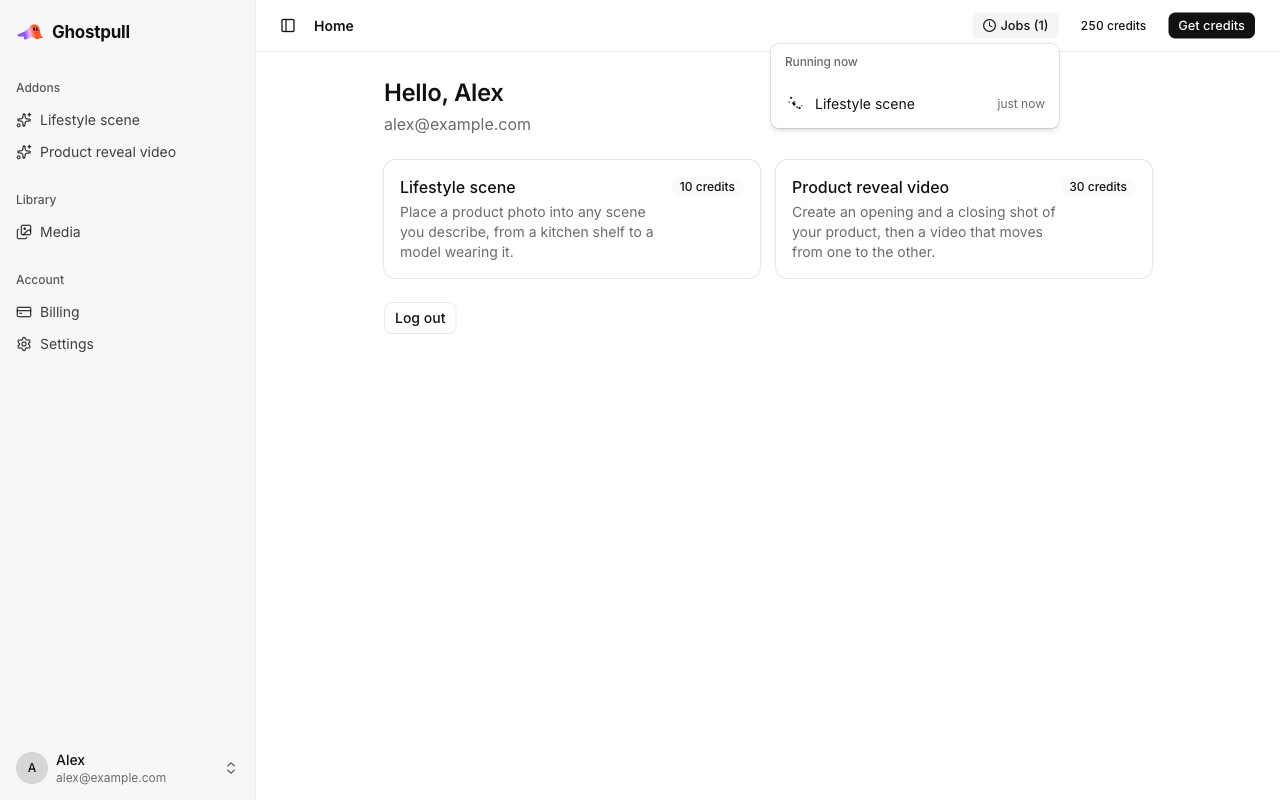
Jobs lists running work only. Keep a finished run's URL to revisit it; the inputs shown there are the ones that run started with. Editing the composer prepares another run and does not change an existing result.
If a selected library photo's thumbnail expires on a long-open page, select it again from the library to refresh the preview.
Next
- Addon tutorials: complete examples for each Addon.
- Media library
- Addons and runs