Product reveal video
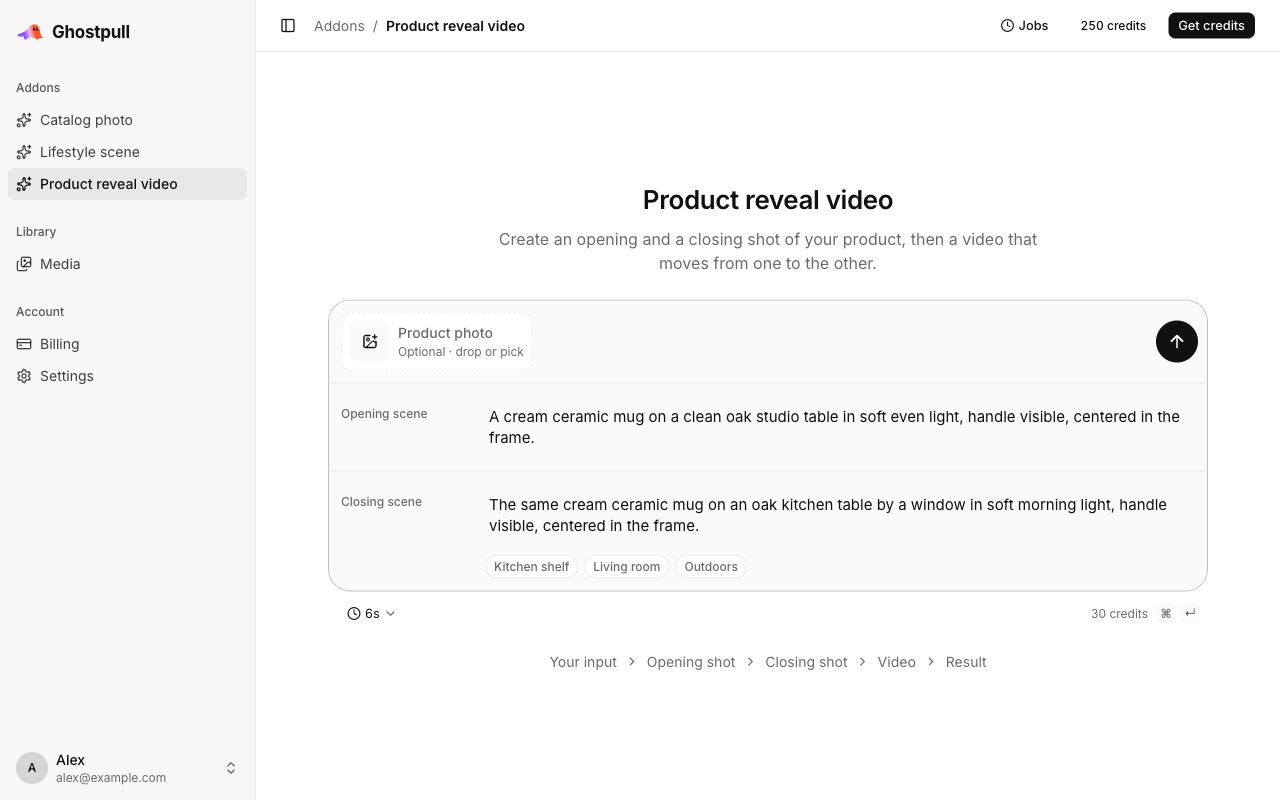
Create a short video that moves from an opening product shot to a closing shot. In this tutorial, you supply a product photo, describe both settings and review the two images and final video.
The Addon generates the two shots first, then asks a video model to animate between them. Both images are final outputs as well as inputs to the video. You can also start without a photo by describing a product in the opening scene; use that path for a concept rather than a faithful view of an existing item.
Before you start
- Log in and open Addons.
- For an existing product, prepare a clear photo showing its full outline and important details.
- Pick two settings that can work together in one short transition. Keep the product recognisable in both.
- Check the price shown before you generate. See credits for preview billing.
Generate a video from your photo
- Open Product reveal video from Addons.
- Select Product photo and choose a file or library image, or drop a photo onto the composer. Check its thumbnail.
- Enter Opening scene and Closing scene using the first example below. With a photo, you can leave these empty: the opening defaults to a clean studio setting and the closing to a suitable lifestyle setting.
- Choose Length in seconds. Start with the default length; a longer choice gives the transition more time but does not guarantee better motion.
- Select Generate. Opening shot and Closing shot are created independently. Each can appear as a preview while the other is still working. Video starts after both are ready.
- Once the run succeeds, play Video from beginning to end. Open both shot images full size and compare them with the original photo.
- Select Download for the video or either shot. Successful result files also appear in Library. Keep the run's URL to revisit all three together.
You can leave the page while the run works. Open Jobs to return to a running job. The run guide explains progress, errors and returning to a finished run.
Example: a coffee bag from studio to kitchen
Goal: introduce a coffee bag on a plain surface, then reveal a breakfast setting with the same bag.
Attach a front-facing photo of the bag. In Opening scene, enter:
The coffee bag upright on a clean cream studio table in soft even light,
front label facing the camera, centered with the whole bag visible.
In Closing scene, enter:
The same coffee bag upright on a warm wooden kitchen counter beside an
unbranded ceramic cup, soft morning light, front label visible, product
centered and at its natural size.
Generate the video and check the bag's outline, label and colour in both shots. Watch the transition for label flicker, bending packaging or props passing through the bag. If the change is too abrupt, use more similar surfaces and lighting in the two scenes, then generate another run.
Example: a lamp from neutral studio to living room
Goal: show a lamp in a room while keeping its structure easy to inspect.
Attach a photo showing the whole lamp, including its base and shade.
Opening scene:
The lamp on a plain oak side table against a light grey studio wall, soft
daylight, entire lamp visible and centered, camera at table height.
Closing scene:
The same lamp on a plain oak side table in a quiet living room, a sofa
softly blurred behind it, soft daylight, entire lamp visible and centered,
camera at table height.
Generate and review the stem, shade edges, cable and base throughout the video. Keeping the table and camera height similar reduces the amount of change you ask for. If the lamp gains extra parts during the transition, simplify the room or choose a clearer reference photo.
Example: a bottle concept without a photo
Goal: explore a hypothetical product presentation before a real product photo exists.
Leave Product photo empty. Opening scene must describe the product as well as its starting setting:
A small cylindrical amber glass bottle with a matte black screw cap and a
plain cream label without text, standing upright on a pale stone studio
pedestal, centered in soft even light.
Use this Closing scene:
The same amber glass bottle on a pale stone bathroom shelf, soft daylight,
a folded cream towel in the background, the whole bottle centered and
unobstructed.
Generate and compare the bottle in both shots. Without a photo, each shot is generated from text; proportions and details may differ. Add a real photo when you need the result to represent a specific item.
Review and limits
The opening and closing shots are currently requested in 16:9. The video is requested without generated audio. This Addon has no controls for music, captions, voiceover or editing the transition after generation.
| What you see | What to do |
|---|---|
| Generate asks for a photo or opening scene | Add a photo, or describe the product in Opening scene. A closing scene alone is not enough. |
| One shot is ready and the video is waiting | Wait for the other shot; video generation needs both. |
| Product changes between shots | Use a clear reference photo and simpler, more similar settings. |
| Motion distorts a detail | Watch the full video, revise the scenes and generate another run. A good still preview does not guarantee a good transition. |
| Run fails after previews appear | Read the run's error. Previews are intermediate results; successful final publication has not completed. |
Changing the composer prepares a new run. It does not regenerate one frame inside the old run or resume a failed video from a selected preview.
Next
- Lifestyle scene: create a single image in a setting.
- Media library: find and download successful results.