Library
Open Library in the sidebar to find every photo and video of your account, by product. Files belong to the account, so its connected apps and API keys with the appropriate permissions can read them too.
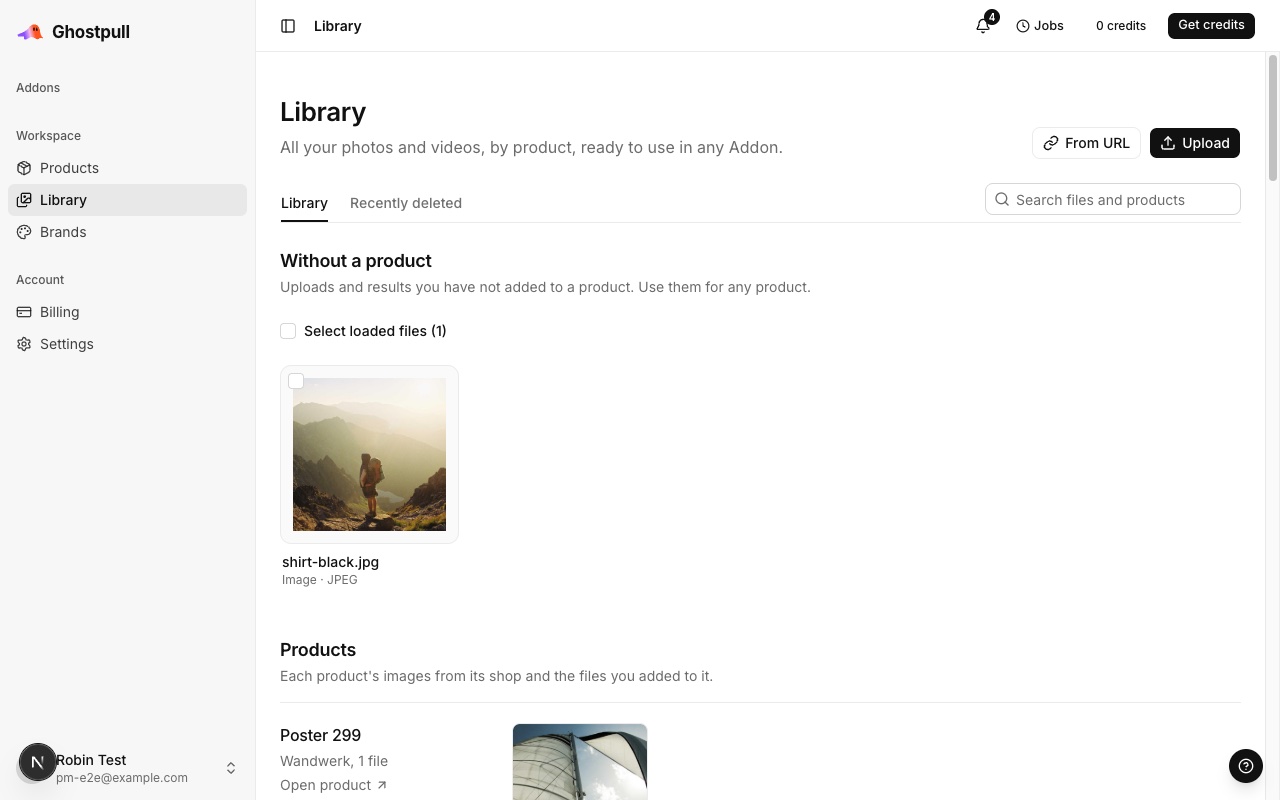
The Library tab shows two groups:
- Without a product: your uploads and successful run results that you have not added to a product.
- Products: each product with the images from its shop and the files you added to it. Shop images that are still loading after an import show as such. A shop image follows its shop's export: it cannot be deleted here, and the next import updates it. Select Open product to edit a product's images.
Add files
- Select Upload and choose one or more files, or drop them onto the Library page.
- Follow each file's progress above the grid. Checking… means the file reached storage and is being validated.
- Completed uploads appear under Without a product. A failed file shows its error and does not stop the others; upload it again to retry.
To import an image you already host, select From URL, enter its public HTTPS link, and select Import. The link must point to the file itself, and Ghostpull must be able to read it without logging in. PNG, JPEG, WebP and GIF images are supported.
Find and reuse a file
- In Library, use Search files and products: it finds your files by file name and products by name, brand or SKU.
- Scroll to load more, or select Load more when it appears.
- Select a file to inspect it. Download saves the original under its file name; Open file opens it in a new tab.
An ad made with Image ad also shows Edit ad, which opens it in the ad editor.
To use an image in an Addon, open its photo input and choose Choose from media library. Search for the file and select it. The picker shows the image types that Addon inputs accept.
Download links expire. Open the file from the library again for a fresh link; save the file itself when you need a lasting copy.
Download several files
- Select the checkbox on each file, or select Select loaded files to select every file loaded so far.
- Select Download ZIP. Chrome and Edge ask where to save the ZIP and write it there directly; other browsers save it when it is ready, up to 500 MB per selection.
- To stop, select Cancel download.
Files with the same name get a number in the ZIP. Changing the search or the tab clears the selection.
Delete or restore a file
- Open a file and select Delete. It leaves Library. To delete several files, select their checkboxes and select Delete above the grid.
- To reverse the deletion immediately, select Undo in the notification.
- Otherwise, open Recently deleted, find the file and select Restore.
Deleted files can be restored for 30 days. After that, they are permanently removed. Deleting a file does not cancel a run already in progress.