Log in
Ghostpull has no passwords: log in with an email code, a passkey, Google or Microsoft. Your first login creates your account.
Log in with an email code
-
Open the web app, enter your email address and select Send login code.
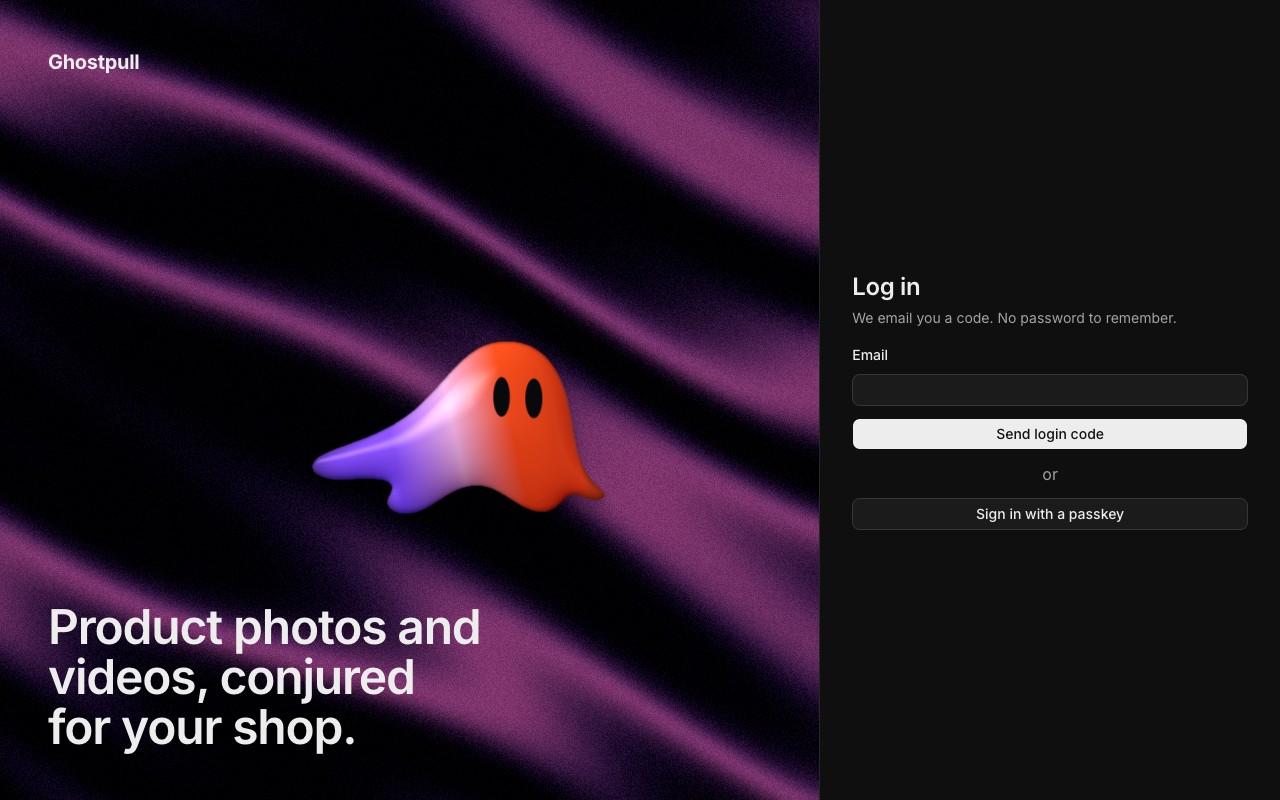
-
Enter the code from the email and select Log in. The code works once, for 5 minutes. Send a new code sends another to the same address after a short wait; then only the newest code works. To fix a typo in the address, select Use a different address.
-
On your first login, enter your name under Complete your profile and select Continue. Ghostpull then offers to add a passkey.
Log in with a passkey
Once you have added a passkey, select Sign in with a passkey on the login page instead of asking for a code. You manage your passkeys in the account menu under Settings › Security › Passkeys.
Log in with Google or Microsoft
- Select Sign in with Google or Sign in with Microsoft on the login page. A button appears only when that provider is available.
- Choose your provider account and complete its login. Microsoft accepts work, school and personal accounts.
- If Ghostpull asks you to verify your email, log in with an email code to the same address. Then link your provider in Settings.
If you already have a Ghostpull account, log in with a code or passkey first and link your provider in Settings. Choosing the same email at the provider does not link it automatically.