Catalog photo
Create a centered product image on a white background from a supplier or phone photo. In this tutorial, you prepare one source photo, generate a catalog image and check the details before downloading it.
The result is a square PNG, currently 1000 × 1000 pixels, with space around the product. The Addon redraws the product with an image model and places it on the canvas. Use it when you want a consistent catalog presentation; check that the redraw still represents the item you sell.
Before you start
- Log in and open Addons.
- Prepare a sharp photo showing the whole product. A neutral background helps, but a phone photo on a table is a useful starting point.
- Use one clearly identifiable product. If a photo contains several items, crop to the one you want before uploading.
- Check the price shown before you generate. Credits explains preview billing.
Make your first catalog image
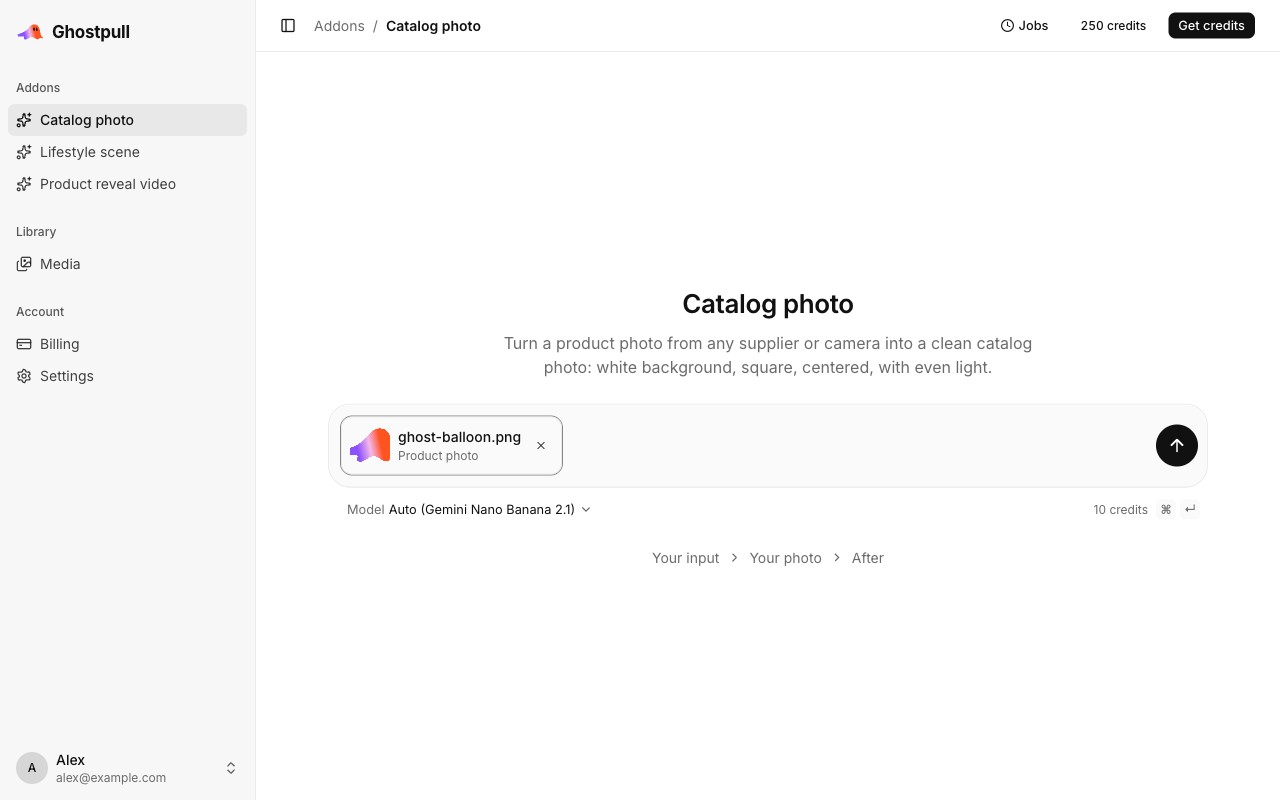
- Open Catalog photo from Addons. You see a Product photo attachment and a Model option.
- Select Product photo and choose a file, select an image from the media library, or drop a photo onto the composer. Check that its thumbnail is the product you intend to process.
- Leave Model on Auto for your first attempt. There is no scene prompt: the Addon chooses the white background, even light and square layout for you.
- Select Generate. Keep the run's URL so you can return to it. During the run, you can see stages for inspecting, cleaning, placing and checking the photo. If needed, the Addon tries to improve the result automatically.
- When the run succeeds, compare the original with After. Read Check if it appears; it describes a detail to review or a check that could not be completed.
- Open the result full size. Compare the product's outline, colour, materials and any text with the source. Select Download when you are satisfied. The image is also available in Library.
The automatic check can miss a changed detail. An empty warning is not a guarantee that every label, stitch or small part is identical.
Example: a ceramic mug from a phone photo
Goal: make a clean main image from a mug photographed on a kitchen table.
- Take a photo at the angle you want in the catalog. Include the complete handle and base, and leave some background around them.
- Select that photo in Product photo and keep Model on Auto.
- Generate the image, then compare the handle opening, rim and glaze pattern at full size. The camera angle should remain recognisable.
- If the handle is distorted or part of the mug disappears, try a sharper source with stronger separation from the background. Generate again and compare the two results in Library.
Use a source that already shows the product's real colour. The Addon cannot recover an accurate glaze colour from a badly tinted photo.
Example: a shoe with fine construction details
Goal: put a single shoe on white while keeping its profile and detailing.
- Photograph one shoe with the toe, heel and sole fully visible. Keep a consistent angle across products you want to compare later.
- Generate with Auto and inspect the sole profile, lace holes, seams and brand mark against the original.
- If the result changes those details, select the other image model through Model and start another run with the same photo. This creates a new result; it does not replace the previous run.
- Compare both images at full size. Keep the one that accurately shows the product, or retake the source photo if neither is usable.
Do not expect the Addon to reconstruct a hidden side or turn the shoe to a new angle. Take the source from the angle you need.
Example: a labelled bottle from a supplier image
Goal: produce a consistent square image without changing the packaging.
- Choose the highest quality supplier photo available. Make sure the bottle cap and base are in frame and the front label is readable.
- Upload it and generate the catalog image with your chosen Model.
- Zoom in on the label, compare all visible words and numbers, and check the cap shape, fill colour and bottle proportions.
- If text or packaging changes, use another source or model and check again. Keep the original supplier image if the generated version is inaccurate.
Small text, transparent materials and reflective surfaces need particular attention. The model can redraw them differently even when the overall image looks convincing.
When a run needs attention
| What you see | What to try |
|---|---|
| No product found | Use a closer photo with the product clearly separated from its surroundings. |
| Several products and none stands out | Crop to one product, then upload the cropped photo. |
| Product cut off | Retake the photo with the whole product and some space around it. |
| Product too small or photo too blurry | Use a closer, sharper source instead of enlarging a low quality thumbnail. |
| A Check warning | Compare the named detail with the source before using the image. |
| Generation fails | Follow the run's message, then try another photo or model. See runs. |
Next
- Lifestyle scene: place the product in a setting.
- Product reveal video: create a transition video.